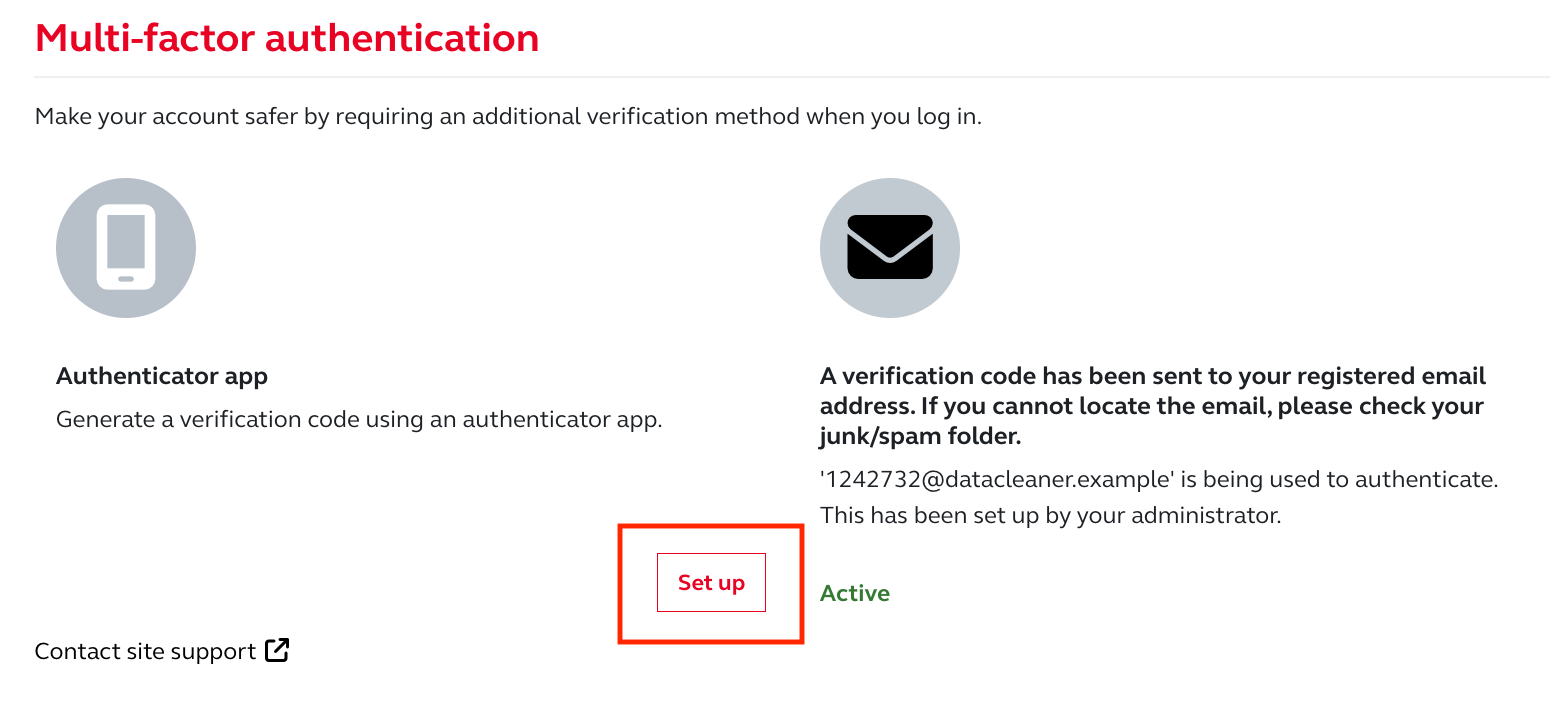
The default verification method is email. Once you have successfully logged in to your LMS account, you can set up an additional verification method by adding an authentication app. We recommend doing so, as it offers a faster verification experience.
Before you can set up an authentication app, you must have one installed on your machine/device.
- If you already have one, please open the authentication app and scan the QR code on the LMS MFA screen.
- If you do not have one, please download any one of the supported authentication app listed below:
- Google Authenticator
- Microsoft Authenticator
- Twilio Authy
- 2FAS Auth
- FreeOTP
Steps on how to set up an additional MFA method:
- Log in to your LMS account
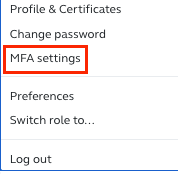
- Next to your user profile icon, expand the dropdown list.
- Select ‘MFA settings’
- Select 'Set up' as shown below:
- Open your authentication app.
- Scan the QR code provided on the LMS MFA screen.
Please note that you can switch between verifying via email and in the app.
Trusting your machine/device
- You can choose to trust your machine/device for up to 2 weeks when verifying by email or app, reducing the need for repeated MFA checks.
Failed MFA attempts
- After 5 failed MFA attempts, the account will be locked and can only be unlocked by the RCUK team.
Was this article helpful?
That’s Great!
Thank you for your feedback
Sorry! We couldn't be helpful
Thank you for your feedback
Feedback sent
We appreciate your effort and will try to fix the article